
Can an Apple iPad Replace a MacBook for Students?
13th Mar 2025
Simon Cross
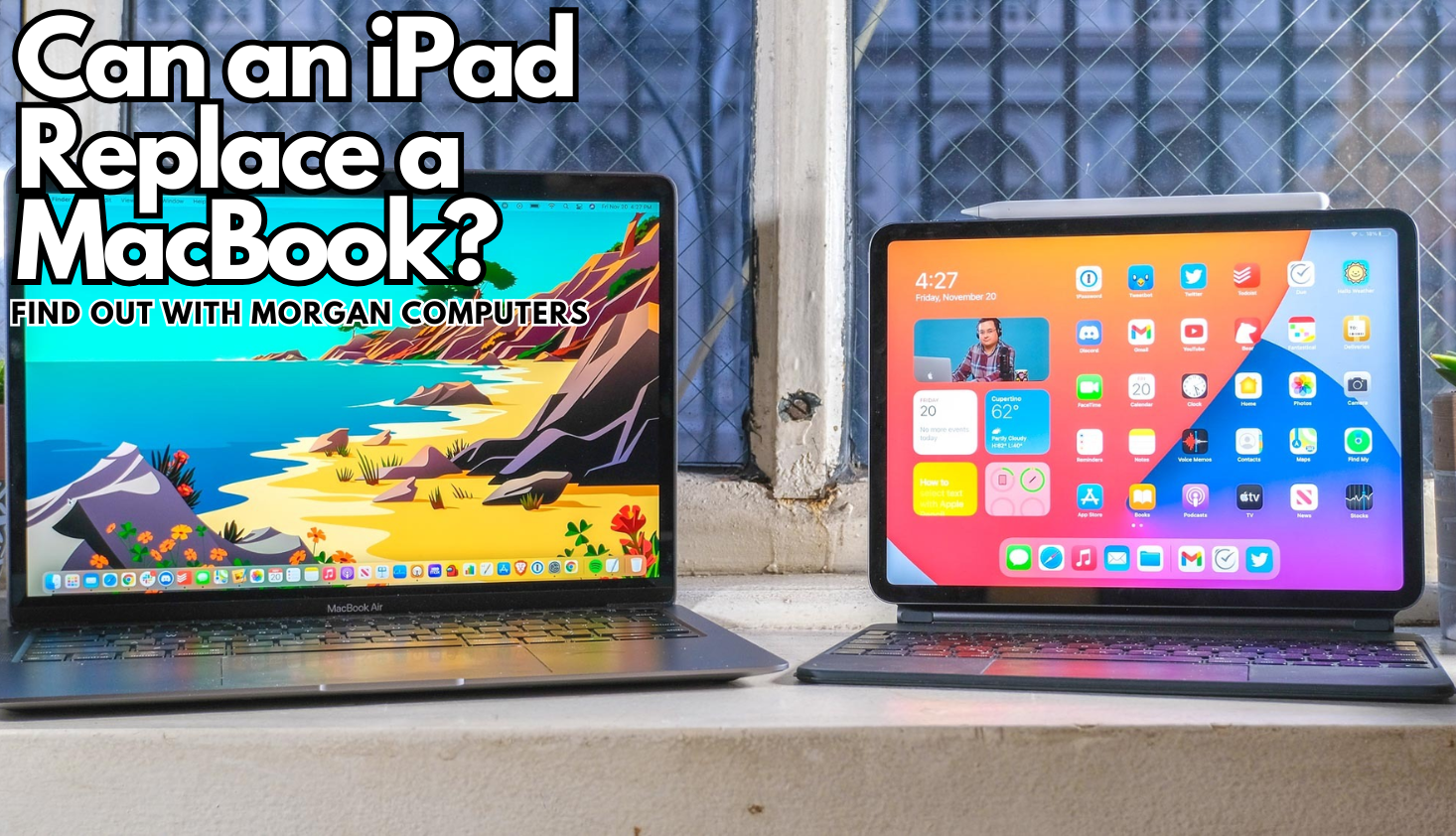
Can a sleek Apple iPad really replace your trusty MacBook in college? I get this question a lot from customers, so I decided to test it out for myself.
In this guide, I'll break down what students really need from their devices and how the iPad stacks up. We'll talk about note-taking, writing essays, coding, creative projects, portability, and more. By the end, I'll give you my personal verdict on whether an iPad can really take over all your laptop duties as a student.
Note-Taking and Reading on an iPad
Note-taking is one area where the iPad truly shines. With the Apple Pencil and apps like GoodNotes or Notability, you can handwrite notes, annotate lecture slides, and keep all your materials organised digitally. It feels like having all my notebooks and textbooks combined into one interactive device.
This is super helpful for diagram-heavy classes (like maths or science) - you’ll find it much easier because you can sketch formulas and drawings naturally. This is just really awkward to do on a MacBook.
Of course, if you prefer typing out notes, a laptop (or an iPad with a keyboard) might serve you better. If you’re one of those students that types faster than you write, you’ll probably want to stick to your MacBook for taking notes.
Writing Essays and Assignments with an iPad
When it came to test-writing essays and assignments, I paired my iPad Pro with Apple's Magic Keyboard (a snap-on keyboard case) to mimic a laptop. For the most part, this worked great. In my opinion, you can easily type in Microsoft Word and Google Docs on the iPad without much trouble.
However, I did encounter a few limitations with more complex writing tasks. Advanced tasks like managing citations or footnotes were cumbersome on the iPad. Also, multitasking with research materials was trickier on the iPad’s smaller screen, despite those screens getting bigger over the last couple of years – I missed the ease of having multiple windows side by side on a MacBook.
You’ll Still Need a Laptop for Coding and Specialised Software
Here’s where I personally hit a wall with the iPad. For anyone studying IT, science or engineering and needing to run programming IDEs or other specialised software (like Visual Studio or MATLAB), an iPad isn’t for you. These apps simply don’t run on iPadOS, only MacOS.
The iPad’s hardware is super powerful (it has the same kind of chip as MacBooks) but Apple’s tablet operating system (iPadOS) doesn’t support many desktop-class applications. I tried some workarounds (like coding via a cloud server or using simplified coding apps), but it won’t be very practical long-term.
For coding assignments and tasks needing specialised software, you’ll inevitably have to jump back to a MacBook.
The iPad is Great for Draft Creative Projects
For artistic and media-related tasks, the iPad is a double-edged sword. On one hand, it’s fantastic: drawing or sketching with the Apple Pencil on apps like Procreate feels natural and has made the iPad hugely popular among art students.
Using it for quick design sketches or light photo editing felt intuitive, and it offers a direct, tactile experience that a MacBook with a mouse just can’t replicate.
But on the other hand, if you need to do more demanding creative work, you will bump into the iPad’s software limits again. The tablet versions of pro apps like Adobe Creative Suite or video editing apps just aren’t as fully featured as on a desktop.
In my experience, many creative students use the iPad for the creative process (brainstorming, sketching, rough edits) and then switch to a Mac or PC to finalise the project when needed. If you don’t like the idea of juggling between devices, I don’t recommend an iPad for design students.
iPad is Great for Portability but Mac is better for Battery Life
One of the biggest practical advantages I felt with the iPad was how easy it is to carry around. It’s so slim and lightweight that I could toss it in my bag with hardly any burden – a huge difference from lugging a hefty laptop and charger.
The quick on-and-off nature of the iPad is a bonus too; instantly wake it up to check notes or assignments between classes without the delay of booting up a laptop. In tight spaces (like a tiny desk or even standing on the bus), using the iPad was more convenient than using a MacBook.
That said, when it comes to battery life, the MacBook Air actually outperforms the iPad. While the iPad lasts around 10 hours on a full charge (enough to get through a day of classes) the MacBook Air (M2/M3) can last up to 18 hours, meaning you might not even need to charge it between lectures and late-night study sessions.
If you're doing intensive tasks like research, video editing, or working with multiple apps, the iPad's battery drains much faster than the MacBook’s.
So, even though the iPad is a fantastic on-the-go device, if you need all-day battery life without worrying about outlets, the MacBook Air is the clear winner.
File Management & Ports
Even though you can rely on wireless connectivity for most file sharing nowadays, you will still need to be connecting your device to another every now and then. MacBooks are equipped with multiple USB-C/Thunderbolt ports, a headphone jack, and support for external drives and accessories.
On the other hand, the iPad typically has only one USB-C or Lightning port (depending on the model). This means that if you want to connect multiple peripherals—such as an external monitor, a USB drive, or even a wired keyboard/mouse, you’ll likely need a USB-C hub or dongle, which adds extra cost and bulk.
If your coursework involves frequent file transfers, working with external devices, or needing multiple ports for accessories, a MacBook will provide a far smoother experience.
Computer Literacy
Okay, this one is a bit more of a long-term consideration. But, I think it’s worth thinking about the fact that when you graduate, you won’t be using an iPad in a professional setting.
When you get started in the workforce after university, you’ll probably find things a lot easier and smoother if you know your way around a MacBook.
Knowing how to fiddle with settings, deal with file management and use keyboard shortcuts will mean you can be more productive as soon as you start your grad job. If you’ve only been using an iPad for your whole degree, you might struggle with some of these things a bit more.
It’s not a deal breaker, but in my opinion it should be a consideration when choosing a device for university.
iPad vs. MacBook: Which One Should You Choose?
Alright, so after months of testing, here’s my honest recommendation:
- Get an iPad if…
- You take handwritten notes and love the Apple Pencil.
- Your major doesn’t require heavy multitasking or special software.
- You want a light, portable device for classwork, entertainment, and creativity.
- Get a MacBook if…
- You write long assignments and essays and need multiple windows open at once.
- You’re in STEM, business, or design and need desktop software (coding, engineering, video editing).
- You want one device that will last all of college (without workarounds).
My Final Recommendation
After my testing, I’ve found that an iPad can replace a MacBook almost entirely for many students, but not for everyone. It handled the bulk of daily tasks with ease. Yet, when it came to those few remaining needs (like using a coding application), I was glad to have a MacBook as a backup.
If your major doesn’t require specialised computer software, you might never really miss having a traditional laptop. The iPad could very well cover all your needs, especially given its strengths in note-taking and portability.
But if you do rely on heavy-duty applications or you simply prefer the classic laptop workflow, I recommend keeping a laptop in the mix.
In short, the iPad is a fantastic tool for students and can replace a laptop in a lot of scenarios. Just be honest about your specific needs and be prepared for a few workarounds if you go tablet-only. I hope my first-hand insights have helped you weigh the decision. Good luck with your studies!
Blog Author: Simon Cross is the trusted expert behind the in-depth articles on all things computing at Morgan Computers. With years of experience in the tech industry, Simon is passionate about helping users find the best devices, whether refurbished or brand new. His expertise covers everything from performance optimisation to hardware comparisons, ensuring readers get the most out of their technology. View Simons author page to learn more about him.